

In a world where everyone’s a photographer, sometimes those perfect shots need a little trim. Whether it’s that pesky photobomber sneaking into your frame or a random lamp stealing the spotlight, knowing how to cut images on an iPhone can save the day. With just a few taps, anyone can transform their snapshots from “meh” to “wow!”
Understanding Image Cutting on iPhone
Editing images on an iPhone can elevate a photograph’s quality. Cropping plays a crucial role in focusing attention on the main subject while removing distractions.
Importance of Editing Images
Editing images transforms ordinary photos into eye-catching visuals. Users can enhance composition significantly by refining image dimensions. Removing unwanted elements helps to create a cleaner, more professional look. Effective edits lead to improved storytelling in photos, making them more engaging for viewers. As a result, well-edited images often attract more attention on social media platforms.
Basic Tools Available
iPhones offer several tools for cutting and editing images. The built-in Photos app features a user-friendly cropping tool. Users can access this tool by selecting an image, tapping “Edit,” and then choosing “Crop.” Resizing is another crucial feature; it allows adjustments to aspect ratios. Additionally, rotation options help to align images correctly. Filters provide enhancements for color and tone adjustments, further improving overall aesthetics.
Step-by-Step Guide to Cut Images
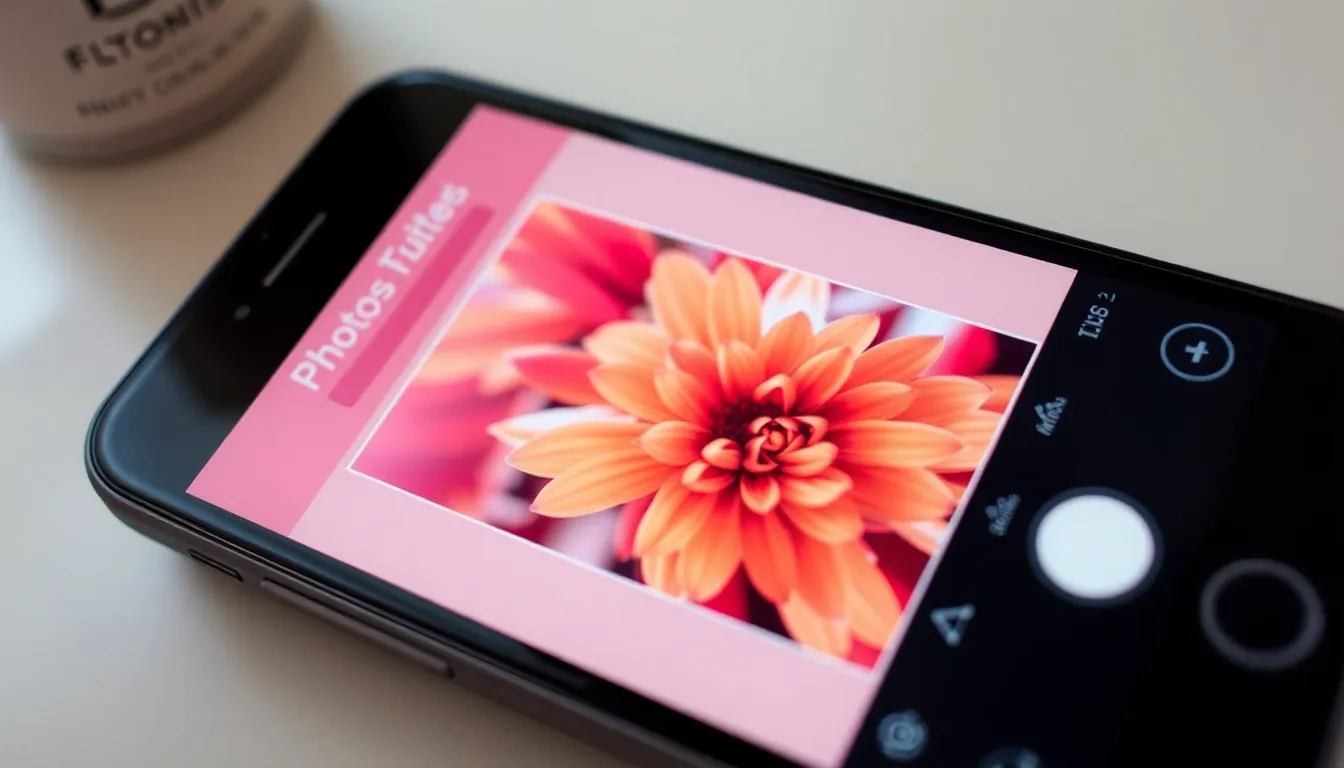
Cropping images on an iPhone is straightforward, allowing users to quickly enhance their photos. Follow these steps for effective cropping.
Using the Photos App
Open the Photos app and select the image to crop. Tap “Edit” in the upper right corner. Next, choose the crop icon, which resembles a square with arrows. Adjust the edges of the image by dragging the corners to resize. Use the aspect ratio options at the bottom for specific dimensions like square or 16:9. Rotate the image if needed by using a circular icon. Once satisfied with the edits, tap “Done” to save changes. This process enables quick enhancements to focus on the subject.
Using Third-Party Apps
Explore various third-party apps for advanced cropping features. Apps like Snapseed or Adobe Lightroom offer additional tools for greater control. After downloading, open the app and select the desired photo. Look for the crop or edit option, typically found on the main interface. Adjust the cropping frame by dragging its corners or sides. Many apps include unique filters and adjustments for further enhancement of the image. Save the edited photo to the camera roll by following the app’s export instructions. Utilizing these applications provides more flexibility to achieve desired results.
Tips for Effective Image Cutting
Effective image cutting improves overall photo quality. Following specific strategies helps achieve desirable edits.
Choosing the Right Aspect Ratio
Selecting an appropriate aspect ratio enhances the visual impact of images. Options vary from 1:1 for social media posts to 16:9 for landscape shots. Users should choose ratios that fit their intended platform or purpose. This choice ensures images display correctly across devices. Adopting the correct aspect ratio also focuses attention on key subjects in the photo. Experimenting with different ratios can lead to surprising improvements. Remember to check how cropping affects image composition.
Maintaining Image Quality
Preventing quality loss during cropping is crucial. Start with high-resolution images to safeguard details. Users should avoid excessive zooming when cropping, as this can distort photos. Using the built-in cropping tool minimizes quality degradation since it maintains image integrity. It’s wise to save a copy of the original before making changes. This approach allows users to revert if the edits don’t meet expectations. Regularly checking image quality ensures satisfying edits and clear visuals, especially for sharing online.
Common Mistakes to Avoid
Avoiding common mistakes can significantly improve the cropping experience on an iPhone. Focusing on essential aspects ensures better results.
Over-Cropping
Over-cropping often leads to significant loss of detail. When an image loses too much of its original content, it can appear small or lack context. Users should pay close attention to balance; maintaining focal points while avoiding excessive trimming is crucial for preserving the photo’s integrity. Ensure that key elements remain visible without crowding the edges. Mindful adjustments enhance image composition while avoiding a cluttered look.
Not Saving Your Edits
Not saving edits can result in frustration and wasted effort. Users may refine their images only to lose changes due to neglecting to save. Relying on the built-in features of the Photos app can simplify the process; always use the “Save” or “Done” button to ensure changes stick. Keeping original files intact allows for easy reversion if users prefer earlier versions. Taking a moment to confirm edits significantly enhances productivity and enjoyment in the editing process.
Mastering the art of cropping images on an iPhone can truly elevate the quality of photos. With user-friendly tools available in the Photos app and advanced options in third-party apps, anyone can transform their images into stunning visuals.
By focusing on key aspects like aspect ratio and composition, users can create engaging images that capture attention. It’s essential to maintain image quality and save original versions to ensure flexibility during the editing process.
Avoiding common pitfalls like over-cropping and ensuring balanced composition will lead to more satisfying results. With practice and creativity, anyone can confidently enhance their photography skills right from their iPhone.